| .github/workflows | ||
| config/schema | ||
| css | ||
| docs | ||
| js | ||
| src | ||
| templates/facets | ||
| advanced_search.info.yml | ||
| advanced_search.libraries.yml | ||
| advanced_search.links.menu.yml | ||
| advanced_search.module | ||
| advanced_search.routing.yml | ||
| advanced_search.services.yml | ||
| composer.json | ||
| CONTRIBUTING.md | ||
| LICENSE | ||
| README.md | ||

Islandora Advanced Search
- Introduction
- Feature and Advantages
- Requirements
- Installation
- Configuration
- Configuring Solr
- eDismax Search
- Configure Collection Search
- Configure Views
Introduction
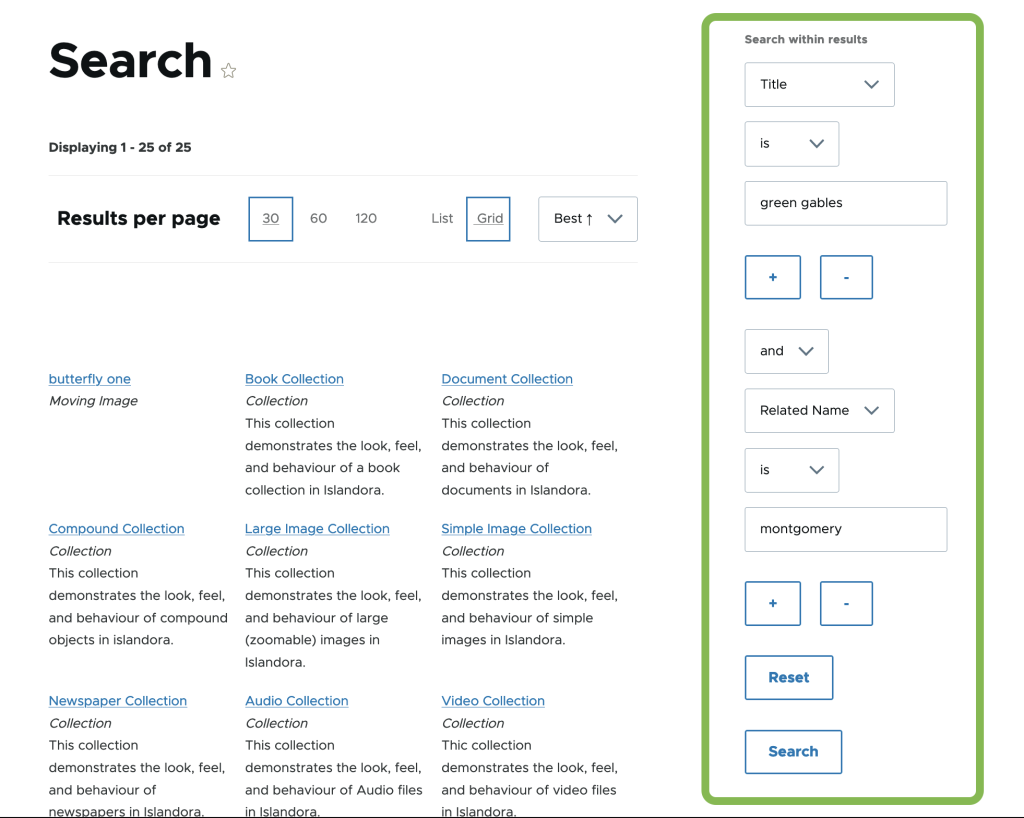
The Advanced Search module provides keyword search, field search, boolean search, and search within collections and sub collections. It provides a pager UI component that allows the user to set the number of items to show, select sort criteria and display style (grid or list). It provides a global search block, which redirects the search query to a search page. It also enables the use of Ajax with views (powered by Solr), search blocks, facets, and search results.
Features and Advantages
The module provides Boolean search, enables you to use AND, OR or NOT options to helps expanding or narrowing your search parameters.
|
Standard Query Parser |
The Extended DisMax (eDismax) Query Parser |
|
|
Use |
If Edimax is turned off in configuration, the “Standard Query Parser” is used. |
Edismax is enabled by default, but can be turned off in configuration (/admin/config/search/advanced). |
|
Capacity |
|
|
|
Search |
Content indexed into a string field
Content indexed into a full-text field
|
Content indexed into a string field
Content indexed into a full-text field
|
Use the following syntaxes (eDismax ONLY) to increase Search acuracy is provided below:
|
Operator |
Usage |
Example |
|
AND |
Narrow down your search to include results that contain both search terms |
orientation AND games |
|
OR |
Broaden your search to include results that contain either search term |
students OR undergraduates |
|
NOT |
Narrow your search by excluding certain words or phrases |
orientation NOT games |
|
Asterisk (*) |
Replaces the asterisk with multiple characters. Use to search for multiple beginnings, middles, and endings of words. |
librar* will include results like:
|
|
Question Mark (?) |
Replaces the question mark with a single character. Use to search for multiple beginnings, middles, and endings of words. |
?est will include results like:
Will not include:
|
|
Tilde (~) |
Use to make your search ‘fuzzy’ or search for synonyms and alternate spellings. Only works for Keyword search. |
Shaun~ will include results like:
|
|
Quotation Marks (“”) |
Use quotation marks to search for a specific word or phrase. |
“alumni golf tournament” |
Requirements
Advanced Search requires an installation of Solr, as its syntax is Solr-specific. The Advanced Search blocks also utilize the Facets API, therefore they only work on Views where Facets are enabled.
The following requirements (Drupal modules) will be downloaded automatically by Composer:
You do not need to use Islandora, however the instructions below for setting up search within a collection
(and optionally, its subcollections) use an pattern that is used by Islandora whereby nodes are organized
in a hierarchy using an Entity Reference field (typically called "Member Of" / field_member_of) on a node
that accepts other nodes as values. If you are using Advanced Search and want to make use
of "Search Sub-collections" then you will need to set up such a field on your content type(s).
Installation
This module is part of the Islandora Starter Site, which is a full Drupal site setup that includes Solr, and automatically sets up the views and facets required for Advanced Search to work.
To download and enable just this module, use the following from the command line:
composer require drupal/advanced_search
drush en advanced_search
Configuration
This module will make the following blocks available for every display of a Search API view:
- Advanced Search Block
- Pager Block
This module also provides a block called "Search" that you can place and configure as a global search block.
You can configure these blocks to show up on pages with their respective views using Drupal's Block interface.
You can set the following configuration at
/admin/config/search/advanced:
Configuring Solr
Please review Islandora Documentation before continuing. The following assumes you already have a working Solr and the Drupal Search API setup.
Extended Dismax (eDismax) Search
Read the Drupal.org documentation on Solr Query Parsers to find more detail about eDismax Search in Drupal.
You can enable Extended Dismax search on this module's configuration page at
admin/config/islandora/advanced_search. This will affect all Advanced Search
and Search blocks provided by this module.
Configure Collection Search
See "Requirements" for a discussion of the use of field_member_of.
To support collection based searches you need to index the field_member_of for
every node as well define a new Search API field that captures the full
hierarchy of field_member_of for each repository item.
Add a new Content Search API field field_decedent_of to the index at
admin/config/search/search-api/index/[your default index]/fields.

Then under admin/config/search/search-api/index/[your default index]/processors
enable Index hierarchy and setup the new field to index the hierarchy.

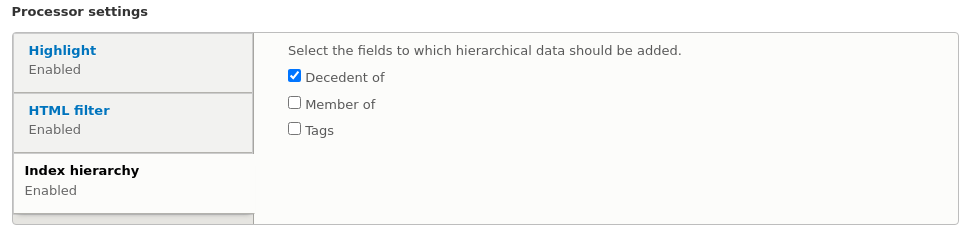
The field can now be used limit a search to all the decedents of a given object. See the section below, "Collection search", to finish configuring your site for collection and sub-collection search.
N.B. You may have to re-index to make sure the field is populated.
Configure Views
Create a Search API view that uses your index.
The configuration of views is outside of the scope of this document, please read the Drupal Documentation, as well as the Search API Documentation.
However, do NOT add the "Fulltext search" filter, despite that it is the "usual" way of setting up a Search view. All fulltext searching (and fielded searching) will be handled by blocks provided by this module.
Exposed Form
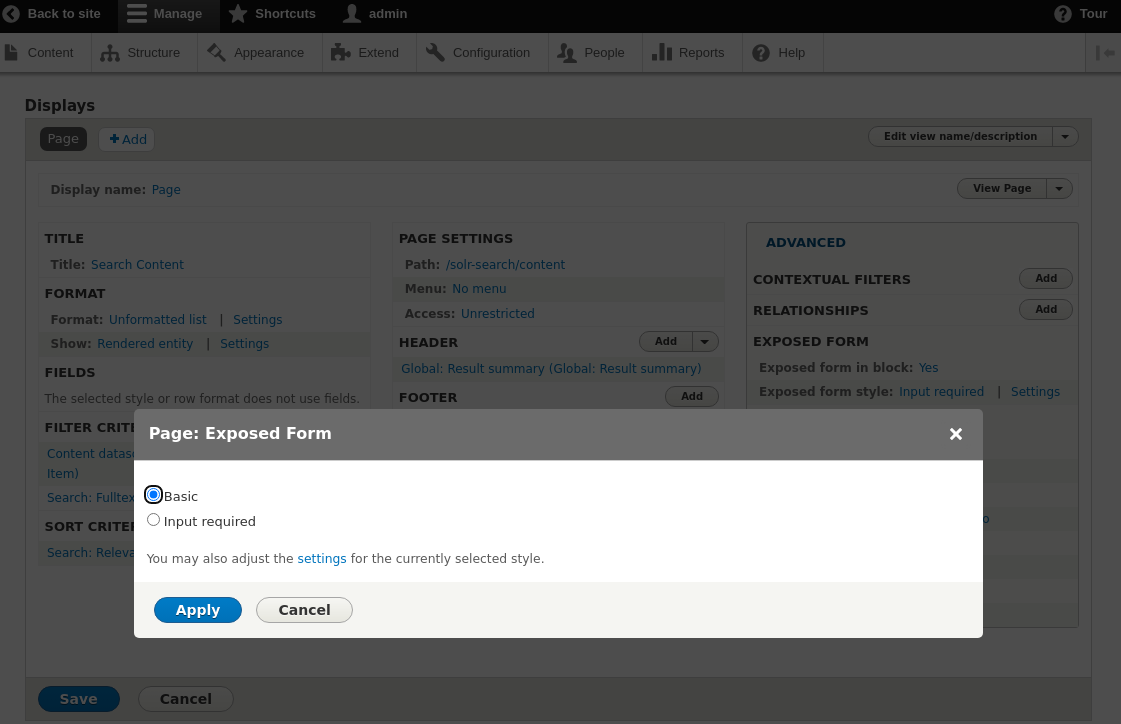
Solr views allow the user to configure an exposed form (optionally as a block). This form / block is different from the Advanced Search Block. This module does not make any changes to the form, but this form can cause the Advanced Search Block to not function if configured incorrectly.
The Advanced Search Block requires that if present the Exposed forms
Exposed form style is set to Basic rather than Input Required. As
Input Required will prevent any search from occurring unless the user puts an
additional query in the Exposed form as well.
Collection Search
This module's "Advanced Search" block can be set up on a "collection" (or, generically, on hierarchical entities that can contain other entities). This block allows the user to select whether they want the search to include sub-collections.
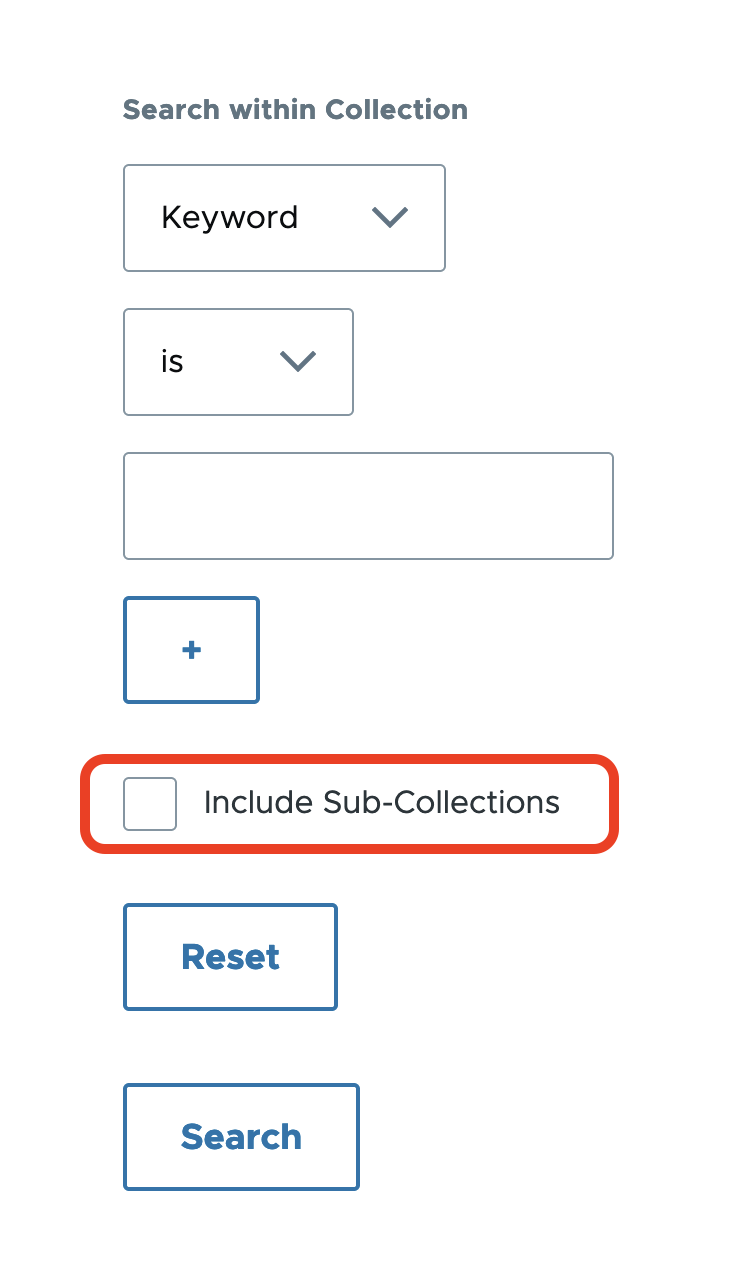
The following instructions describe how to set up this feature.
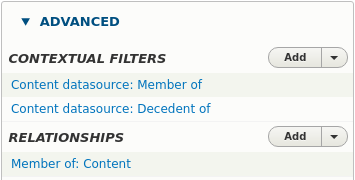
Here a relationship is setup with Member Of field and we have two
contextual filters:
field_member_of(Direct decedents of the Entity)field_decedent_of(All decedents of the Entity)
Both of these filters are configured the exact same way.
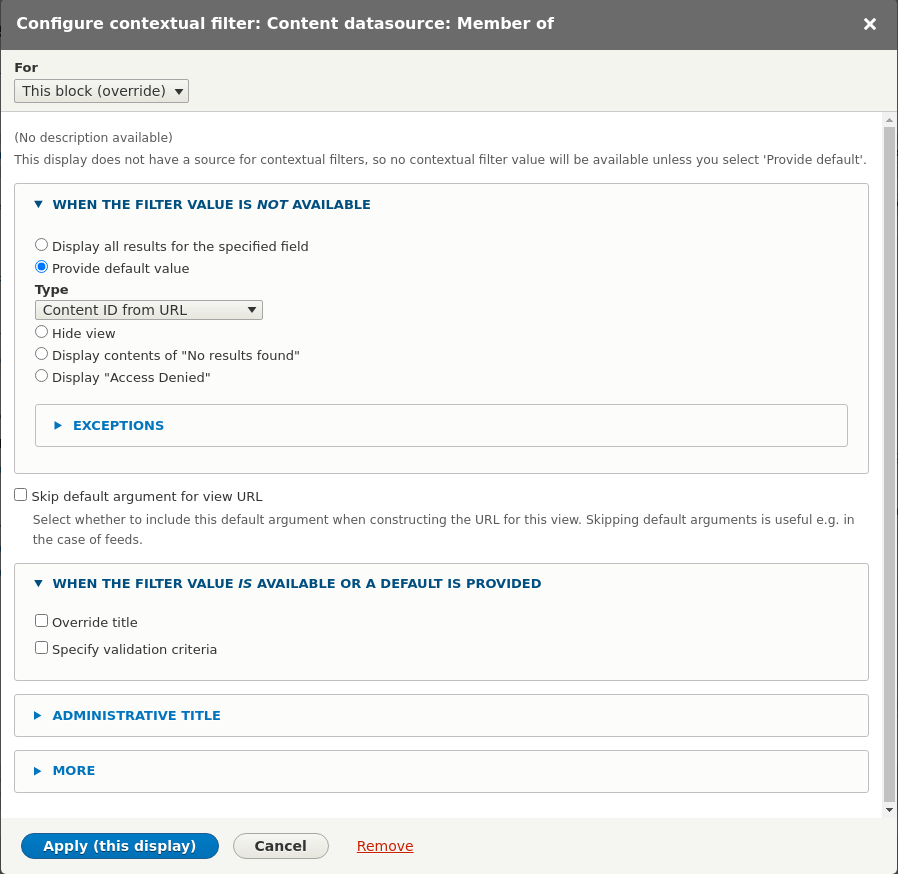
These filters are toggled by the Advanced Search block to allow the search to include all decedents or just direct decedents (documented below).
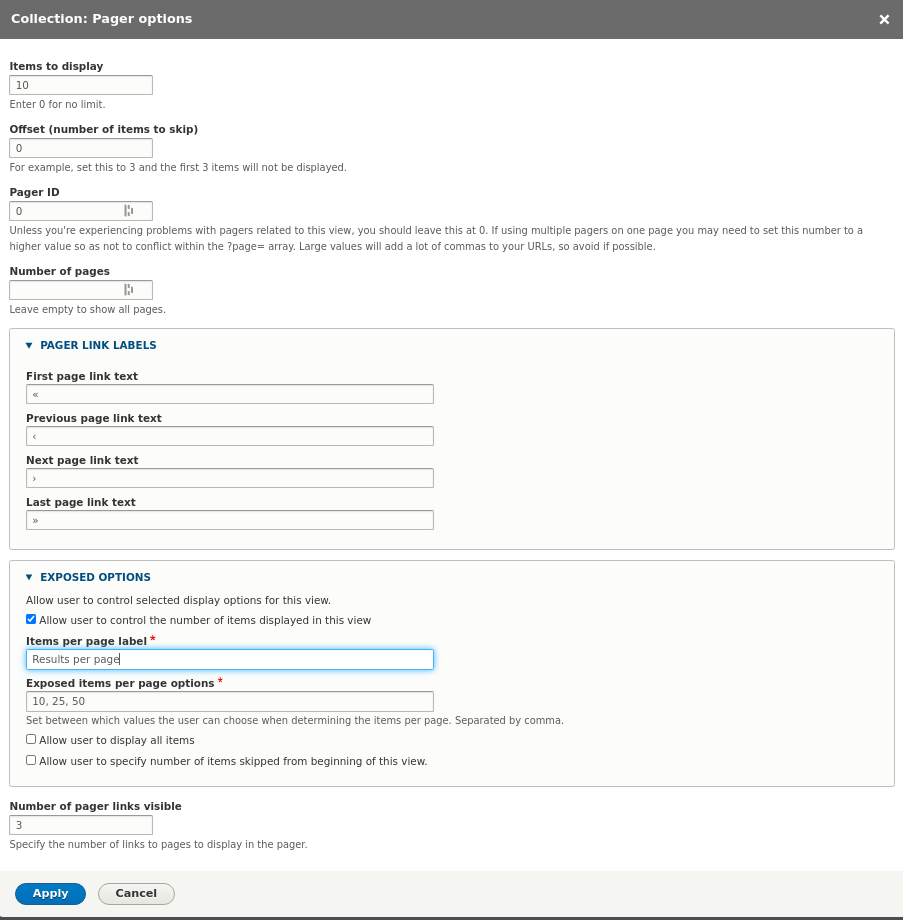
Paging
The paging options specified here can have an affect on the pager block (documented below).
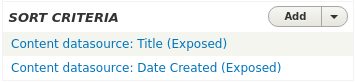
Sorting
Additional the fields listed as Sort Criteria as Exposed will be made
available in the pager block (documented below).
Search Highlighting
-
Add Search Excerpt to the Advanced Search View.
- Navigate to
/admin/structure/views/view/advanced_search. In theFieldssection, clickAdd, then selectSearch Excerpt.'
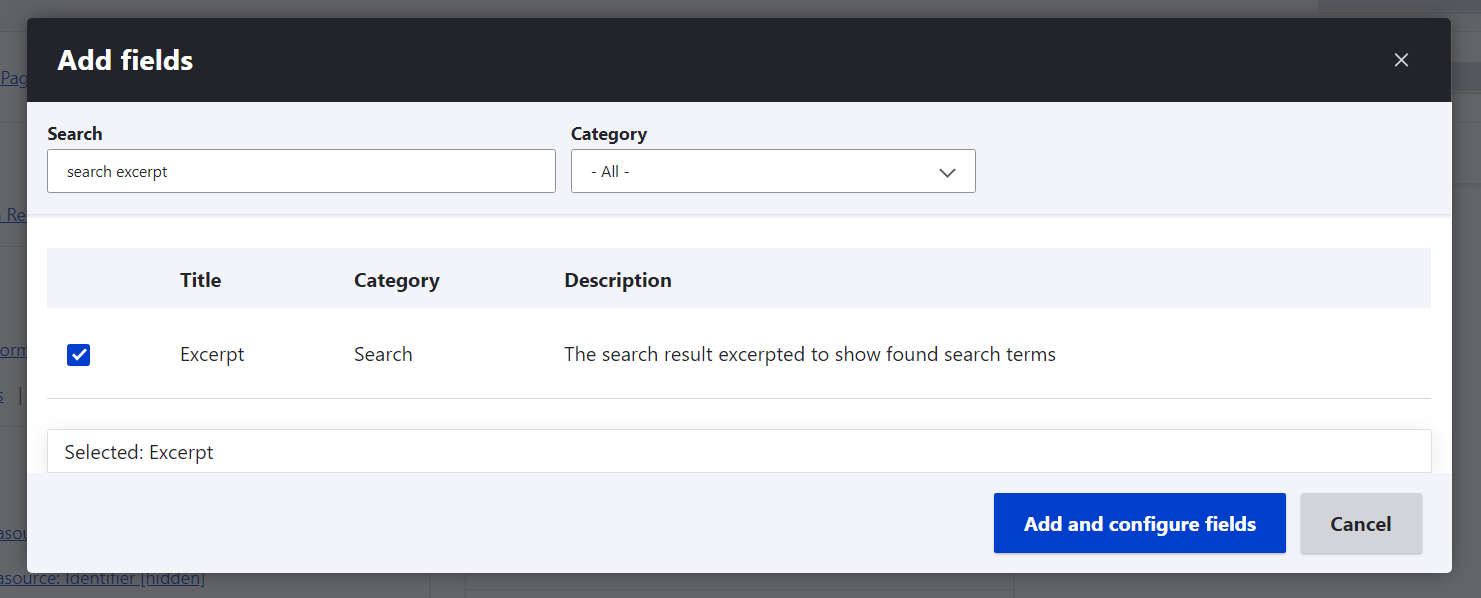
- Navigate to
-
Turn on Search API highlight processor
- Navigate to
/admin/config/search/search-api> Edit Index > Processors > Enable Highlight processor.
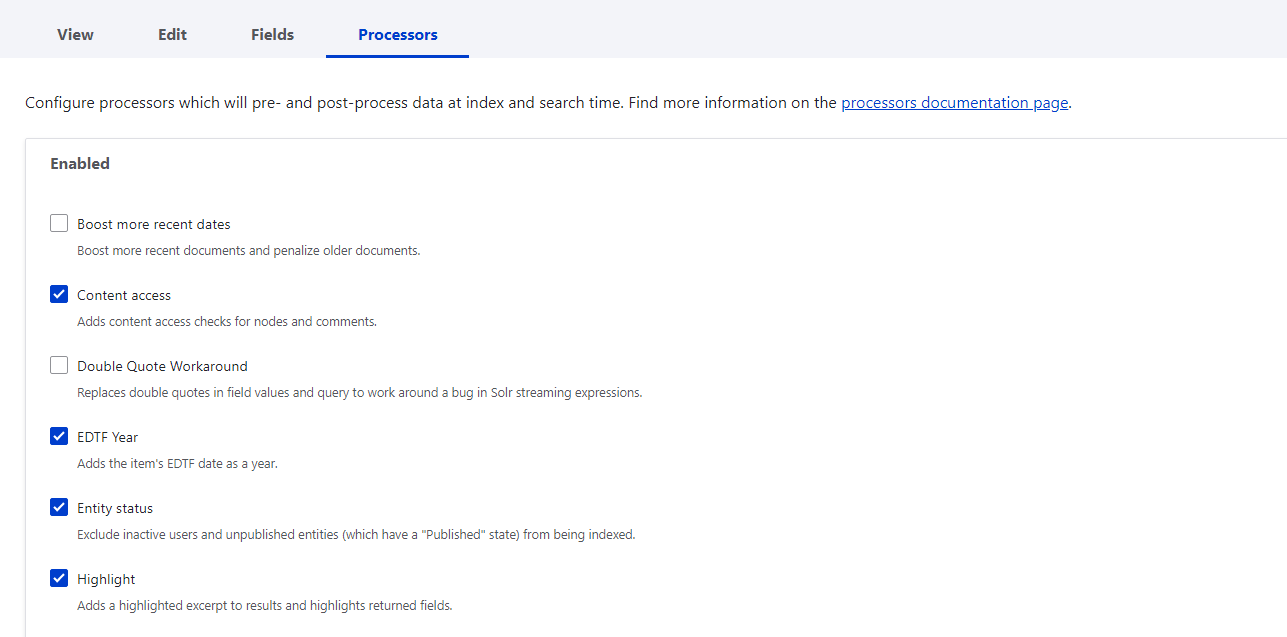
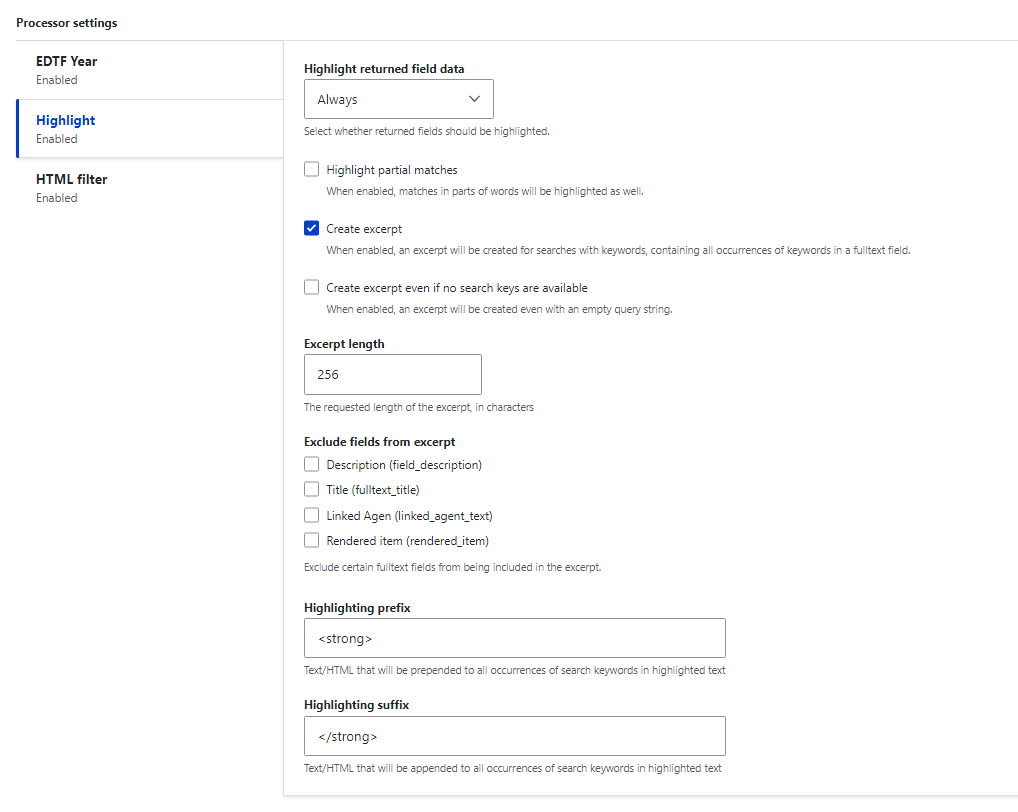
- At the bottom of the form, under Processor Settings > Highlight > Select
Create excerpt.
- Navigate to
-
Configure Solr Server.
- Navigate to
/admin/config/search/search-api> Edit Server > Configure Solr backend > Advanced > SelectRetrieve highlighted snippets.
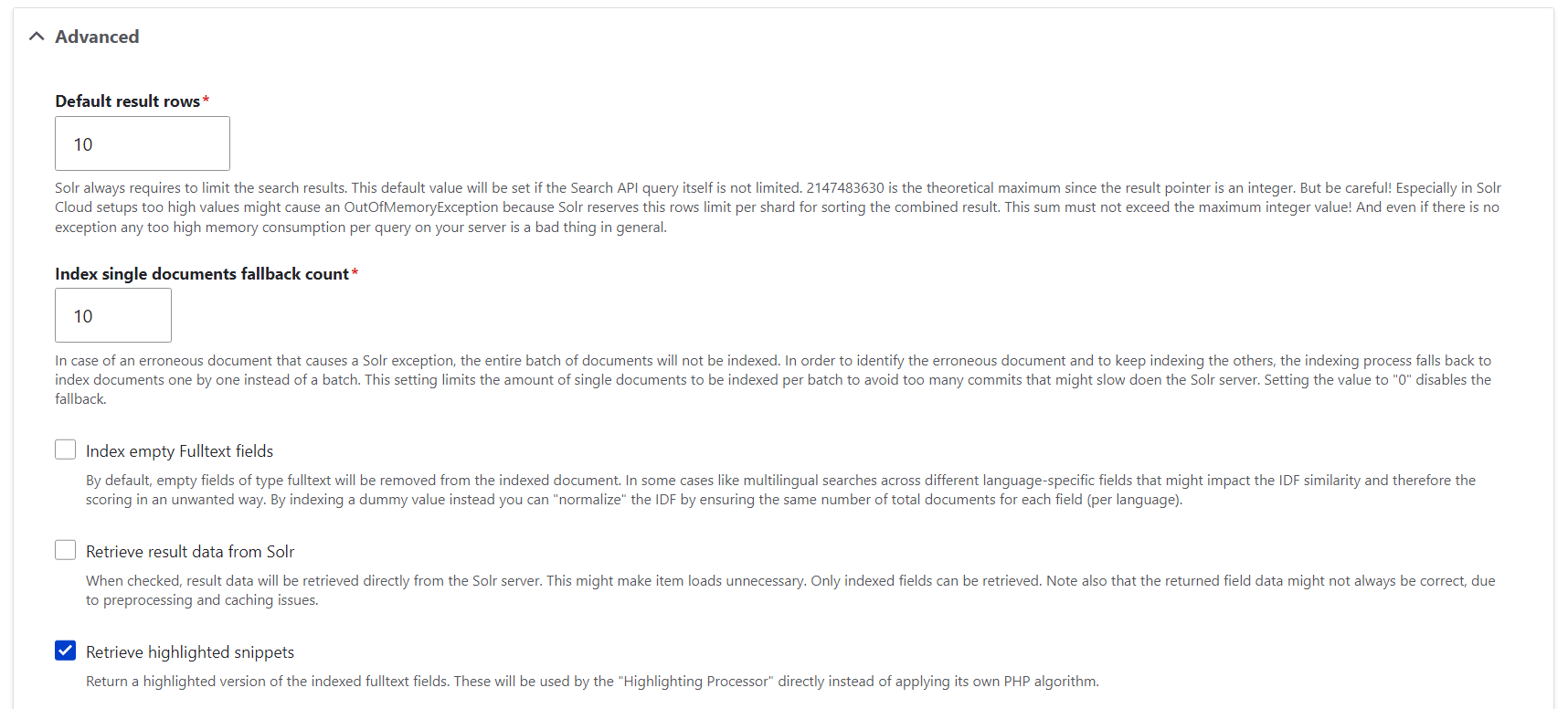
- Navigate to
Result Summary
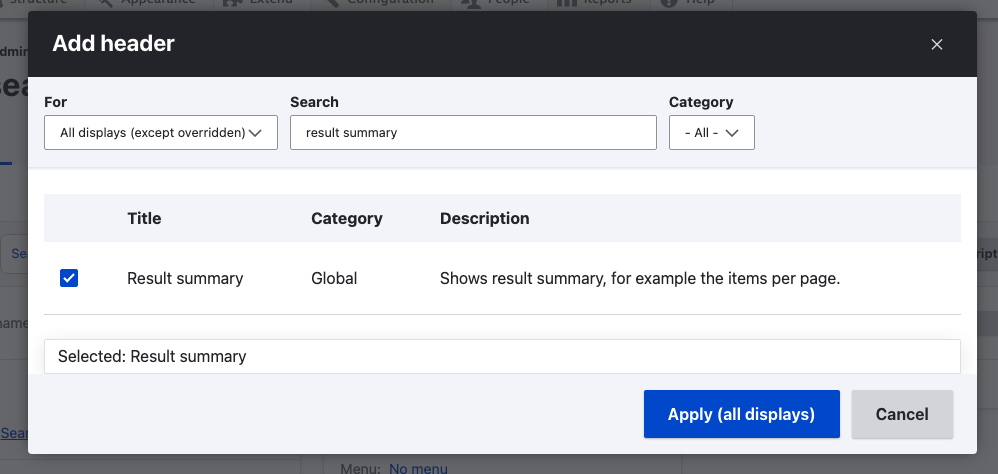
In your view, in the Header section, clikc Add, then search and select for "Result summary".
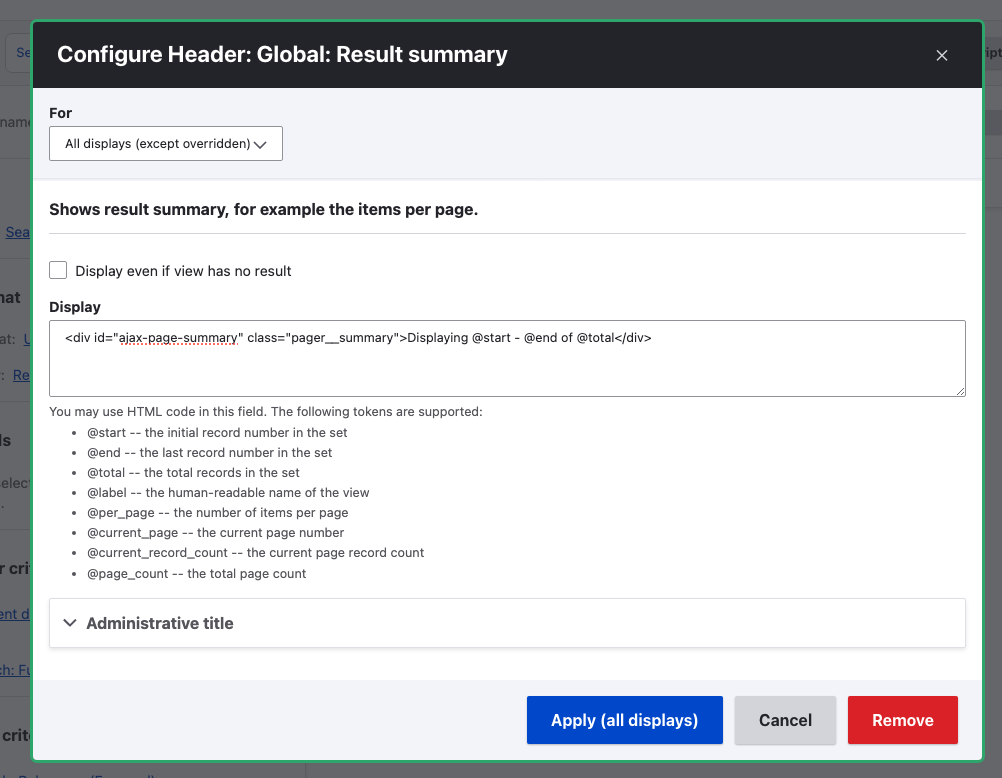
Then, paste the following code to Display textarea in Configure Header: Global: Result summary
<div id="ajax-page-summary" class="pager__summary">Displaying @start - @end of @total</div>
Configure Blocks
For each block type:
- Facet
- Pager
- Advanced Search
There will be one block per View Display. The block should be limited to
only appear when the view it was derived from is also being displayed on the
same page.
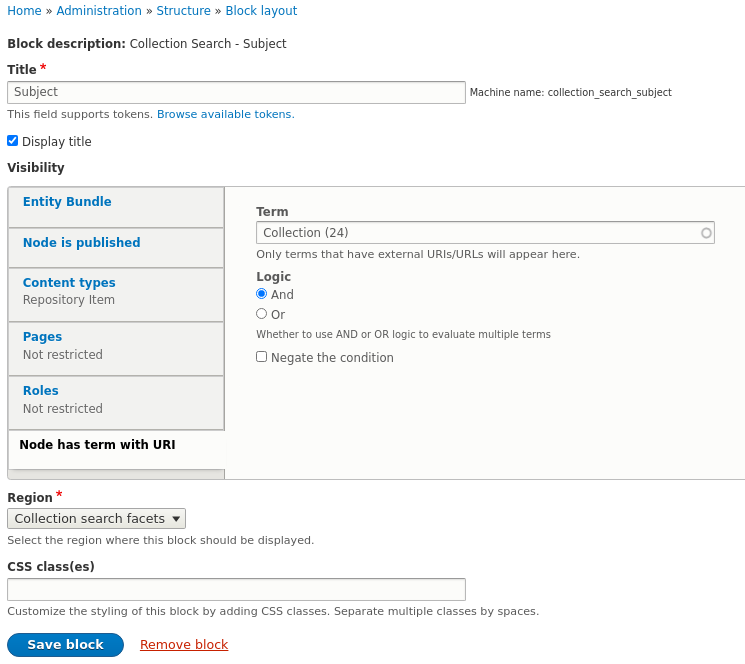
This requires configuring the visibility of the block as appropriate. For
collection based searches be sure to limit the display of the Facets block to
the models you want to display the search on, e.g:
Advanced Search Block
For any valid search field, you can drag / drop and reorder the fields to display in the advanced search form on. The configuration resides on the block so this can differ across views / displays if need be. Additionally if the View the block was derived from has multiple contextual filters you can choose which one corresponds to direct children, this will enable the recursive search checkbox.
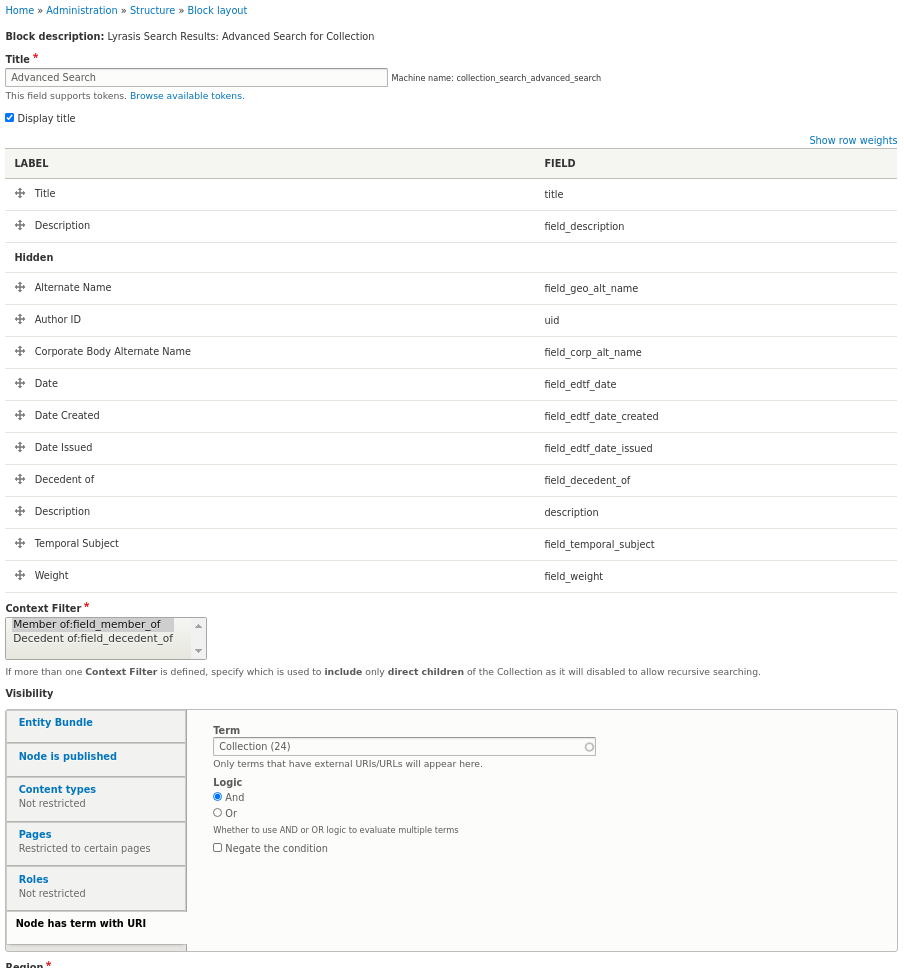
N.B. Be aware that the Search views Exposed Form can have an affect on the function of the Advanced Search Block. Please refer to that section to learn more.
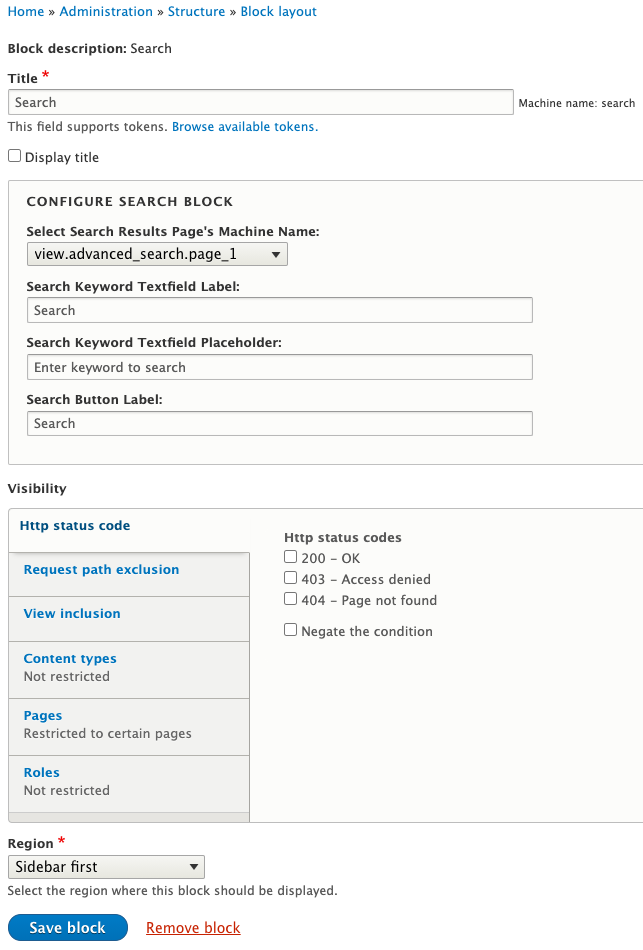
Search Block (NEW)
To associate this simple search block to a Advanced Search Result Page view, you can select its machine name in the dropdown list. With that, this form will redirect to the view with search parameters.
You can also change the search form's appearance by changing the default label, placeholder text for the search text field, and search button.
Documentation
Further documentation for this module is available on the Islandora 8 documentation site.
Troubleshooting/Issues
Having problems or solved a problem? Check out the Islandora google groups for a solution.
Maintainers
Current maintainers:
Sponsors
- LYRASIS
Development
If you would like to contribute, please get involved by attending our weekly Tech Call. We love to hear from you!
If you would like to contribute code to the project, you need to be covered by an Islandora Foundation Contributor License Agreement or Corporate Contributor License Agreement. Please see the Contributors pages on Islandora.ca for more information.
We recommend using the islandora-playbook to get started.