
9.8 KiB
Islandora Advanced Search
- Introduction
- Feature and Advantages
- Requirements
- Installation
- Configuration
- Configuring Solr
- Lucene Search (New)
- Configure Collection Search
- Configure Views
Introduction
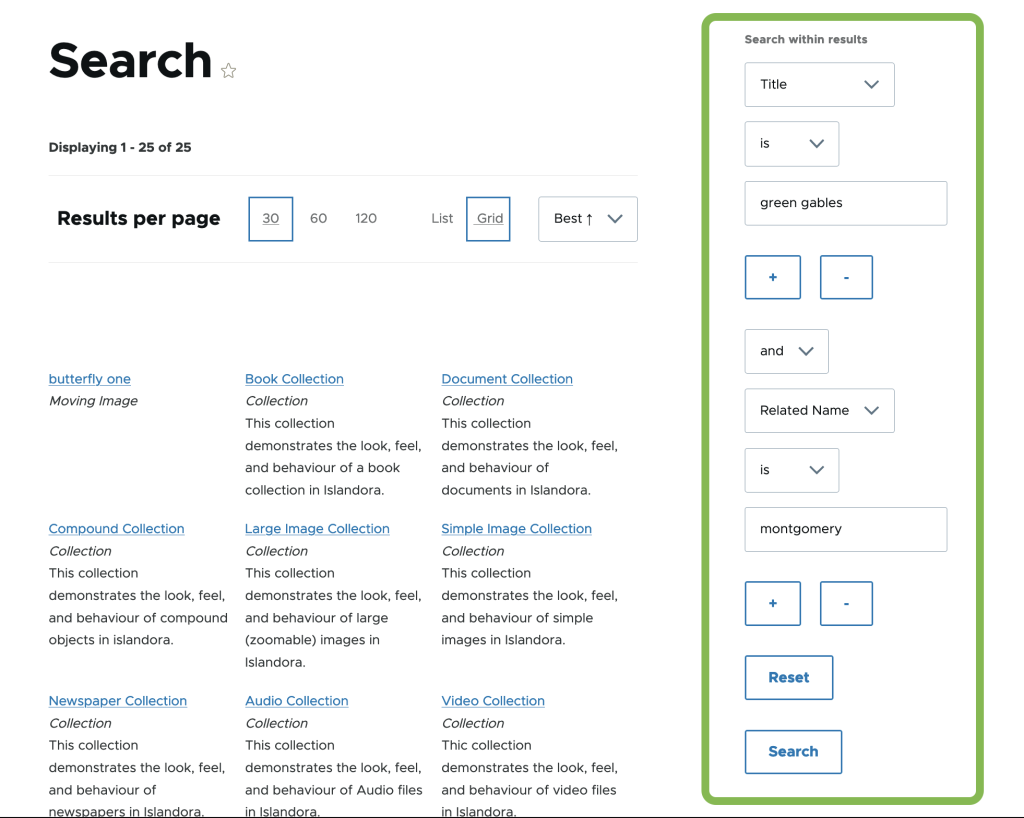
The Advanced Search module creates several blocks to support searching. It also enables the use of Ajax with views (powered by Solr), search blocks, facets, and search results.
Features and Advantages
The module provides Boolean search, enables you to use AND, OR or NOT options to helps expanding or narrowing your search parameters.
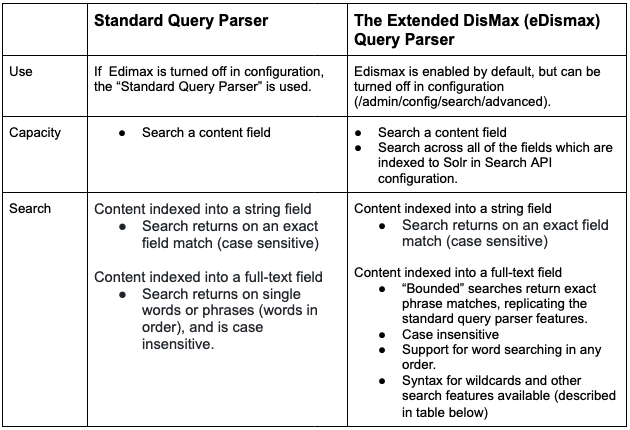
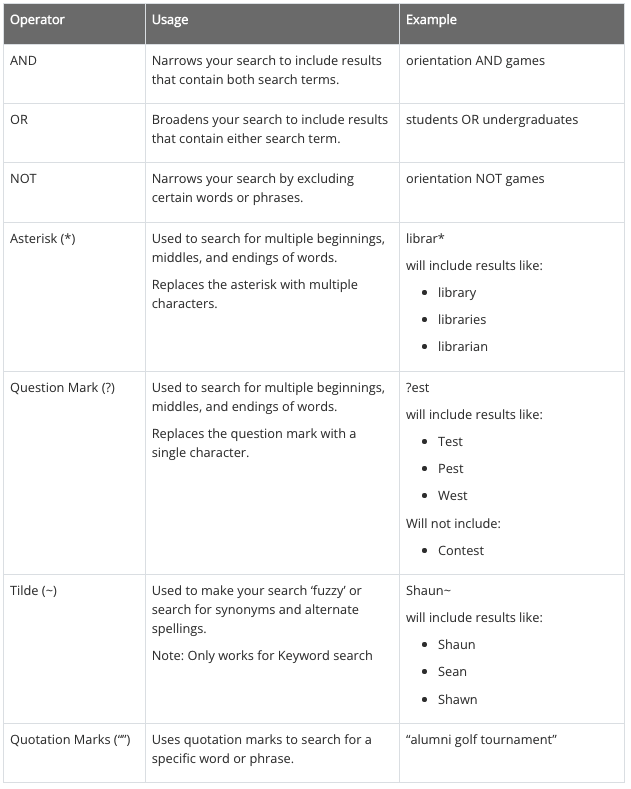
Use the following syntaxes (eDismax ONLY) to increase Search acuracy is provided below:
Requirements
Use composer to download the required libraries and modules.
composer require drupal/facets "^1.3"
composer require drupal/search_api_solr "^4.1"
composer require drupal/search_api "^1.5"
However, for reference, advanced_search requires the following
drupal modules:
Installation
To download/enable just this module, use the following from the command line:
composer require islandora/islandora
drush en advanced_search
Configuration
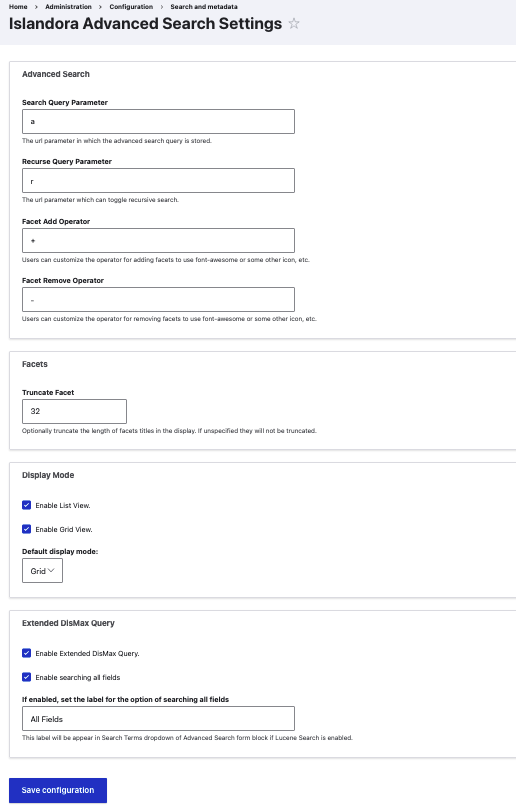
You can set the following configuration at
admin/config/islandora/advanced_search:
Configuring Solr
Please review Islandora Documentation before continuing. The following assumes you already have a working Solr and the Drupal Search API setup.
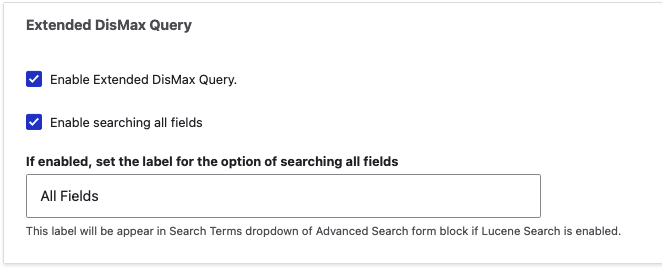
eDismax Search (New)
Click here to find more detail about eDismax Search in Drupal.
Configure Collection Search
To support collection based searches you need to index the field_member_of for
every repository item as well define a new field that captures the full
hierarchy of field_member_of for each repository item.
Add a new Content solr field field_decedent_of to the solr index at
admin/config/search/search-api/index/default_solr_index/fields.

Then under admin/config/search/search-api/index/default_solr_index/processors
enable Index hierarchy and setup the new field to index the hierarchy.

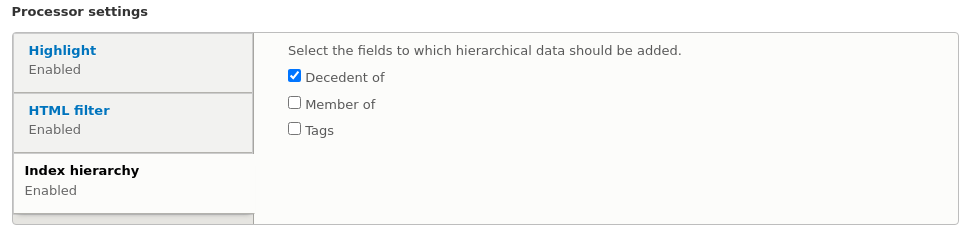
The field can now be used limit a search to all the decedents of a given object.
N.B. You may have to re-index to make sure the field is populated.
Configure Views
The configuration of views is outside of the scope of this document, please read the Drupal Documentation, as well as the Search API Documentation.
Exposed Form
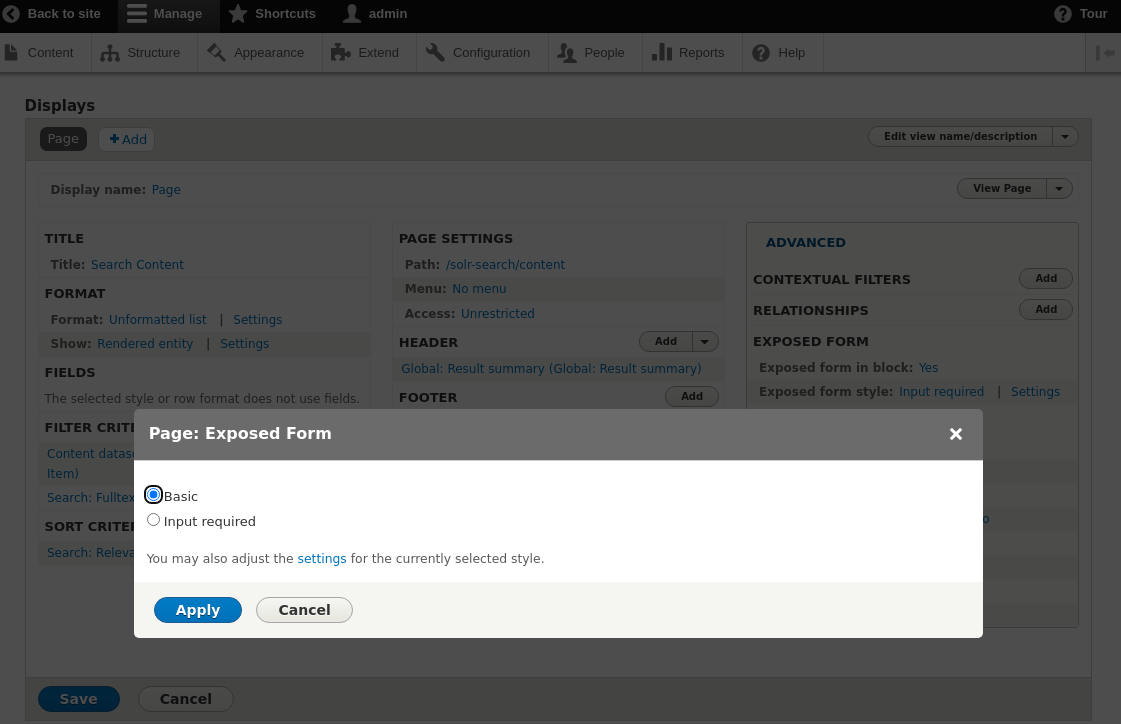
Solr views allow the user to configure an exposed form (optionally as a block). This form / block is different from the Advanced Search Block. This module does not make any changes to the form, but this form can cause the Advanced Search Block to not function if configured incorrectly.
The Advanced Search Block requires that if present the Exposed forms
Exposed form style is set to Basic rather than Input Required. As
Input Required will prevent any search from occurring unless the user puts an
additional query in the Exposed form as well.
Collection Search
That being said it will be typical that you require the following
Relationships and Contextual Filters when setting up a search view to enable
Collection Search searches.
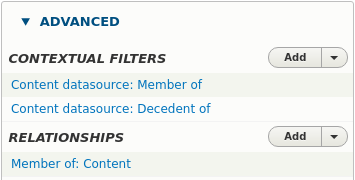
Here a relationship is setup with Member Of field and we have two
contextual filters:
field_member_of(Direct decedents of the Entity)field_decedent_of(All decedents of the Entity)
Both of these filters are configured the exact same way.

These filters are toggled by the Advanced Search block to allow the search to include all decedents or just direct decedents (documented below).
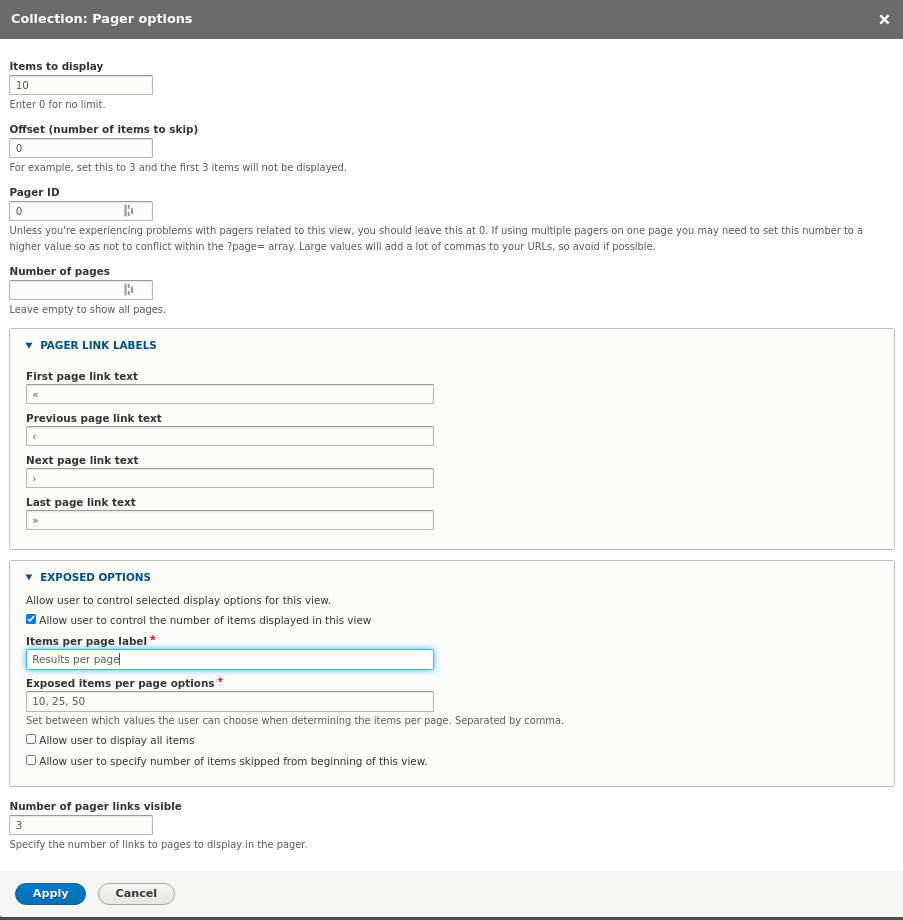
Paging
The paging options specified here can have an affect on the pager block (documented below).
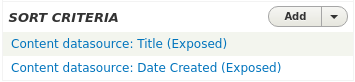
Sorting
Additional the fields listed as Sort Criteria as Exposed will be made
available in the pager block (documented below).
Configure Blocks
For each block type:
- Facet
- Pager
- Advanced Search
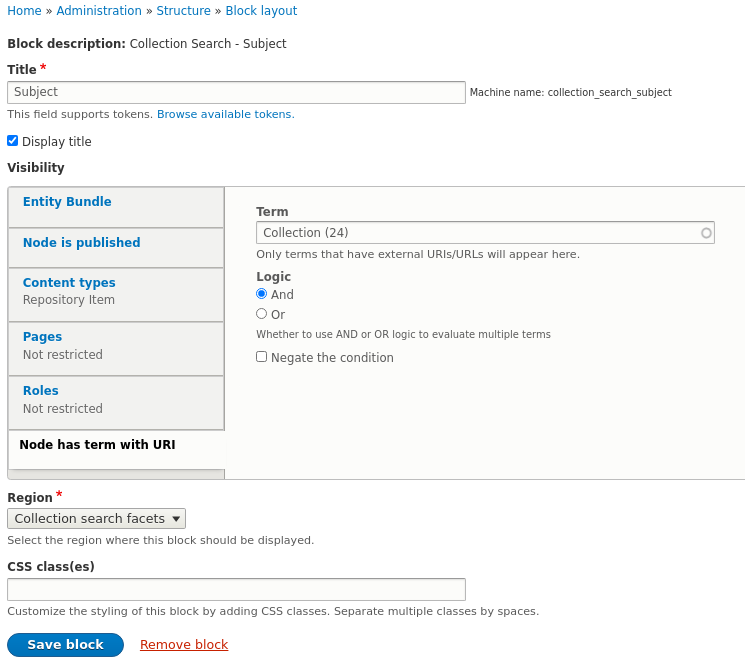
There will be one block per View Display. The block should be limited to
only appear when the view it was derived from is also being displayed on the
same page.
This requires configuring the visibility of the block as appropriate. For
collection based searches be sure to limit the display of the Facets block to
the models you want to display the search on, e.g:
Advanced Search Block
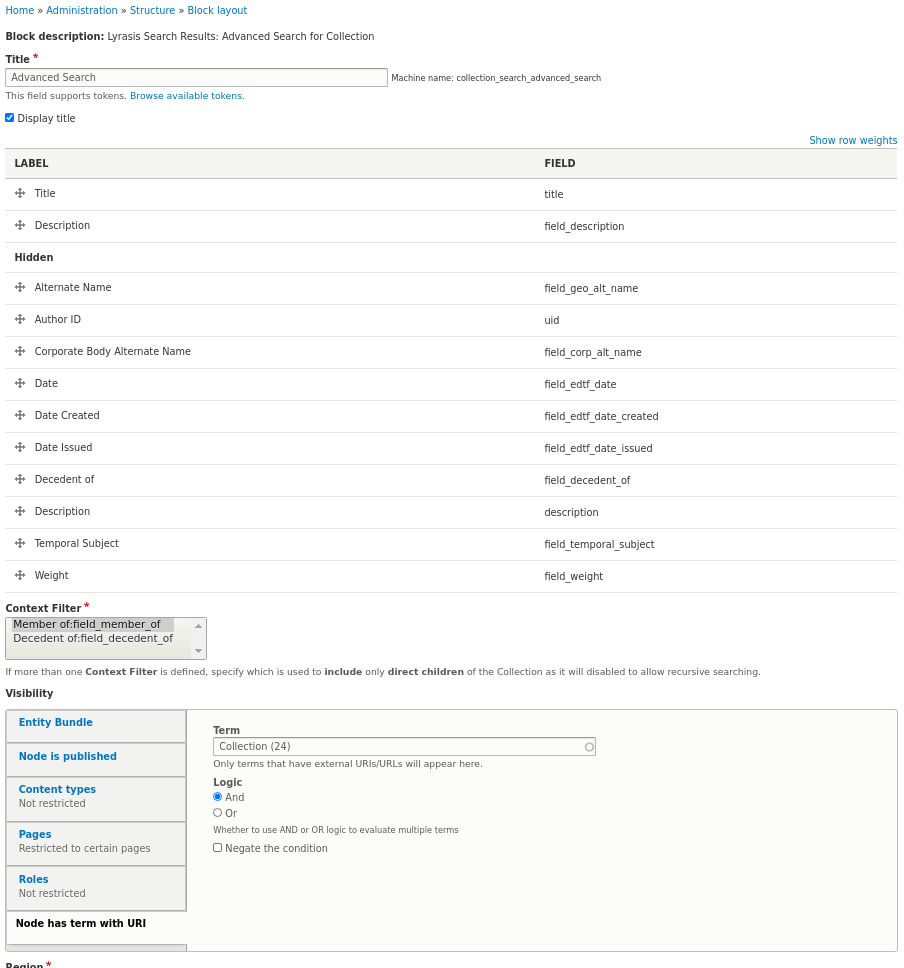
For any valid search field, you can drag / drop and reorder the fields to display in the advanced search form on. The configuration resides on the block so this can differ across views / displays if need be. Additionally if the View the block was derived from has multiple contextual filters you can choose which one corresponds to direct children, this will enable the recursive search checkbox.
N.B. Be aware that the Search views Exposed Form can have an affect on the function of the Advanced Search Block. Please refer to that section to learn more.
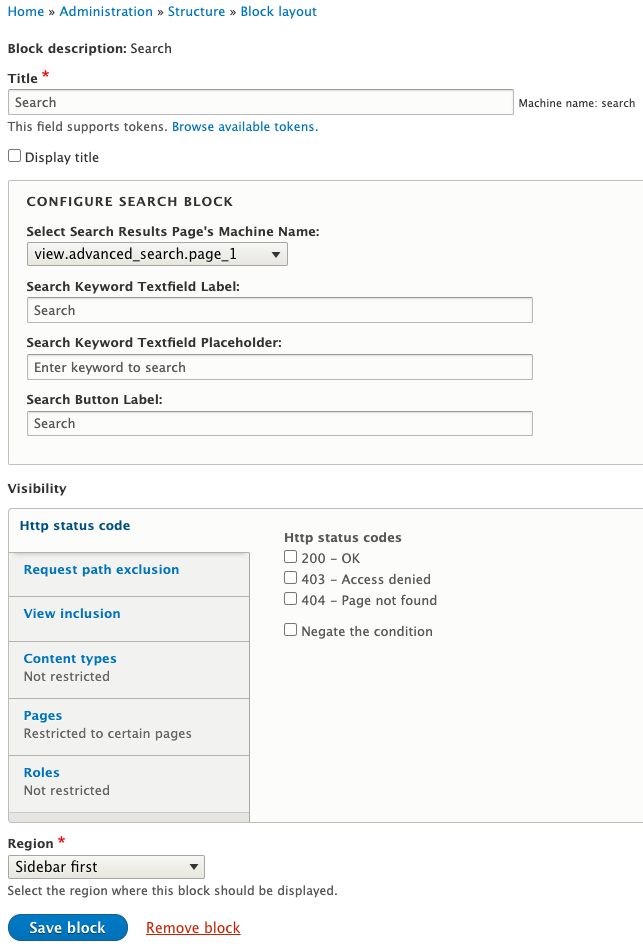
Search Block (NEW)
To associate this simple search block to a Advanced Search Result Page view, you can select its machine name in the dropdown list. With that, this form will redirect to the view with search parameters.
You can also change the search form's appearance by changing the default label, placeholder text for the search text field, and search button.
Documentation
Further documentation for this module is available on the Islandora 8 documentation site.
Troubleshooting/Issues
Having problems or solved a problem? Check out the Islandora google groups for a solution.
Maintainers
Current maintainers:
Sponsors
- LYRASIS
Development
If you would like to contribute, please get involved by attending our weekly Tech Call. We love to hear from you!
If you would like to contribute code to the project, you need to be covered by an Islandora Foundation Contributor License Agreement or Corporate Contributor License Agreement. Please see the Contributors pages on Islandora.ca for more information.
We recommend using the islandora-playbook to get started.